PostgreSQL 12 从安装到基本操作
使用过 MySQL 等相关关系型数据库的话,上手 PostgreSQL 不难。截止2021年末,PostgreSQL 已经推出了 14.1 的 latest release,本文将介绍 12.9 版本在 Linux (CentOS 7) 上的安装和使用。
1. 安装
PostgreSQL 官网 给出了详细的安装命令:
 1
 2
 3
 4
 5
 6
 7
 8
 9
10
|
# 第一步,安装 RPM 仓库,若已安装此步可省略
sudo yum install -y https://download.postgresql.org/pub/repos/yum/reporpms/EL-7-x86_64/pgdg-redhat-repo-latest.noarch.rpm

# 第二步,安装 PostgreSQL 12
sudo yum install -y postgresql12-server

# 第三步(可选),初始化数据库并设置自启
sudo /usr/pgsql-12/bin/postgresql-12-setup initdb
sudo systemctl enable postgresql-12
sudo systemctl start postgresql-12
|
安装完成后可以通过 psql -V 命令检查是否成功安装。
1
2
3
|
$ psql -V

psql (PostgreSQL) 12.9
|
2. 基本操作
2.1 登入
安装 PostgreSQL 后,PostgreSQL 会在系统中创建一个名为 postgres 的用户,后,PostgreSQL 默认的用户名和数据库也是 postgres,与 MySQL 一样没有默认密码。
PostgreSQL 可以直接通过以下命令免密登入:
建议修改默认用户的密码,登入后使用命令 \password postgres 即可设置新密码。
1
2
3
4
|
postgres=# \password postgres
Enter new password:
Enter it again:
postgres= #
|
2.2 基本命令
- 列出所有的数据库
mysql: show databases
psql: \l
- 切换数据库
mysql: use dbname
psql: \c dbname
- 列出当前数据库下的数据表
mysql: show tables
psql: \d
- 列出指定表的所有字段
mysql: show columns from table name
psql: \d tablename
- 查看指定表的基本情况
mysql: describe tablename
psql: \d+ tablename
- 退出
mysql: quit
psql: \q
2.3 SQL操作
PostgreSQL 适用通用的 SQL 语法,可以查看之前的文章 SQL 语法速成手册。
2.4 导出数据库
导出数据库为 SQL 脚本文件的操作可以使用 pg_dump 命令。
1
|
pg_dump -U postgres dbname -f D:\output.sql
|
3. 远程连接
由于 PostgreSQL 默认只允许本机访问,使用远程连接前须修改 PostgreSQL 的两个配置文件。
3.1 修改配置文件
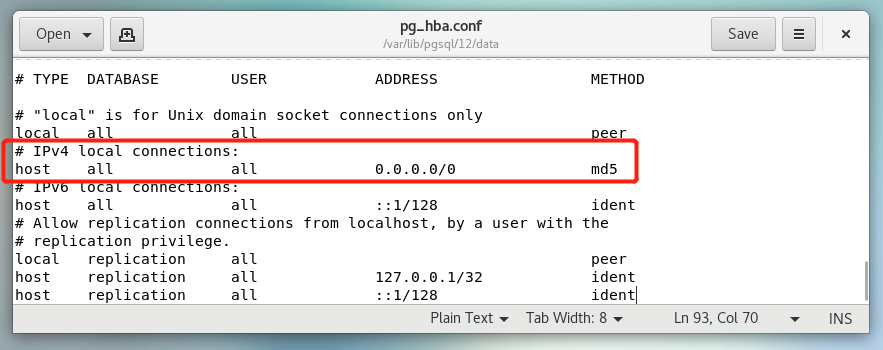
第一个是 PostgreSQL 的访问策略配置文件 pg_hba.conf,该文件在以下位置:
不同系统位置可能不一样,此文仅说明 CentOS。
找到文件中的:
1
2
3
|
# TYPE  DATABASE  USER  ADDRESS  METHOD
# IPv4 local connections:
host  all  all  127.0.0.1/32  ident
|
使用 vim 修改为:
1
|
host all all 0.0.0.0/0 md5
|
 pg_hba.conf
此配置表示允许所有数据库用户以 任意 ip 通过 md5 的密码验证方式于 IPv4 中访问所有数据库,若有安全性要求,请修改固定 ip 地址,并指定用户和可访问的数据库。
末尾参数 METHOD 为 trust 的话表示无需密码验证,可以直接访问。
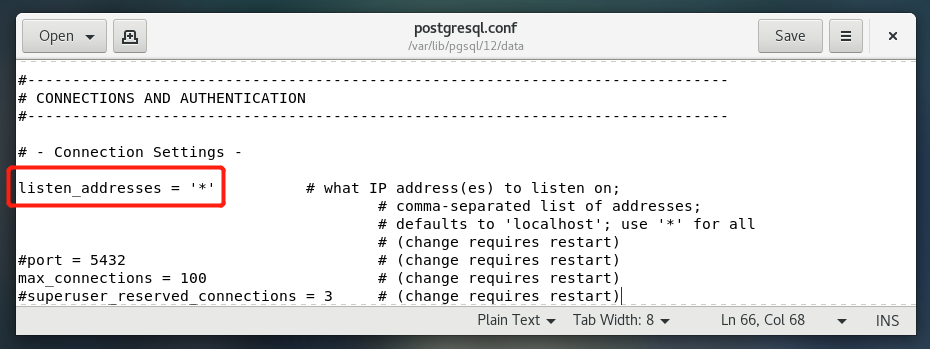
第二个文件是 PostgreSQL 配置文件 postgresql.conf,该文件于 pg_hba.conf 位于同一目录下。
找到文件中 #listen_addresses = 'localhost',使用 vim 修改为:
postgresql.conf
表示监听所有 ip,注意放开 listen_addresses 的注释。
配置完成后使用命令重启 PostgreSQL:
1
|
systemctl restart postgresql-12.service
|
使用命令验证配置:
出现 tcp 0 0 0.0.0.0:5432 0.0.0.0:* LISTEN 语句说明配置生效。
3.2 开放端口
PostgreSQL 默认端口为 5432,使用防火墙命令检查端口是否开放:
1
|
firewall-cmd --query-port=5432/tcp
|
如果返回 no 说明 5432 端口没有开放,使用以下命令:
1
2
3
4
5
|
# 添加 5432 端口 tcp 连接规则
firewall-cmd --add-port=5432/tcp --permanent

# 刷新防火墙
firewall-cmd --reload
|
再次输入检查命令,若返回 yes 则成功修改。
3.3 数据库工具连接
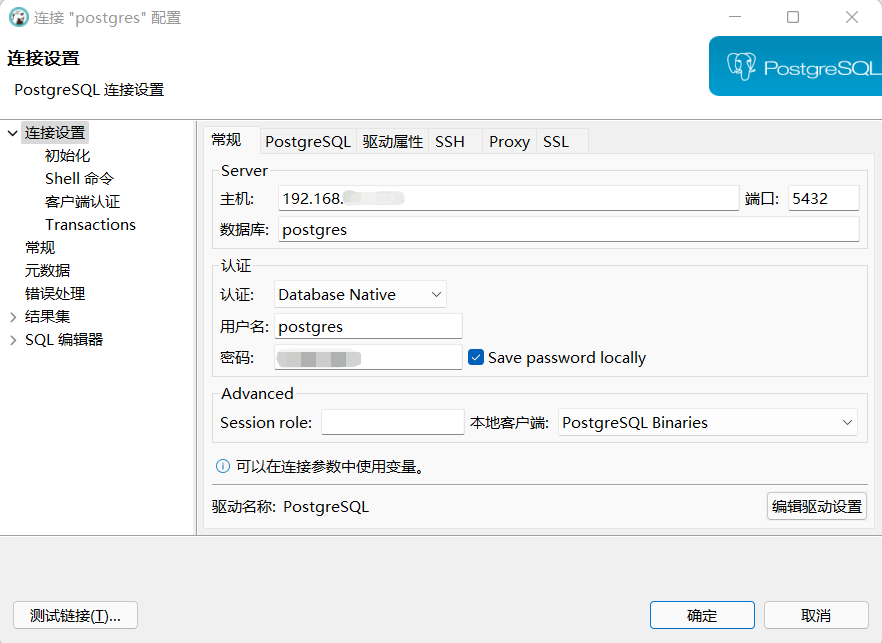
使用 pgAdmin 或者 Navicat 或者 Dbeaver 等数据库工具创建连接。
只需输入 PostgreSQL 所在主机的 ip 地址和用户名、密码等信息即可连接。
可使用 ifconig 或者 ip addr 命令查看主机 ip 地址,若为虚拟机须设置网络为 NAT 模式。
连接配置
4. 自动安装脚本
保存并运行以下脚本可以自动安装和配置,安装后记得按提示修改 PostgreSQL 默认用户的密码。
 1
 2
 3
 4
 5
 6
 7
 8
 9
10
11
12
13
14
15
16
17
18
19
20
21
22
23
24
25
26
27
28
29
30
31
32
33
34
35
36
37
38
39
40
41
42
43
44
45
46
47
48
49
50
|
# PostgreSQL 12 Installation Script (CentOS 7 Only)
# @author: MicroLOONG
# @date: 2022-02-18

#!/bin/bash

POSTGRESQL_DATA_PATH='/var/lib/pgsql/12/data'

POSTGRESQL_DB_PATH='/usr/pgsql-12'

# Check Installation
echo -e "\033[34m ------------Checking PostgreSQL Installation------------ \033[0m"
if test ! -z "$(rpm -qa | grep postgresql)"; then
    echo -e "\033[31m PostgreSQL already exists! \033[0m" && exit 1
fi

echo -e "\033[34m ------------Starting intalling PostgreSQL 12------------ \033[0m"

# Install the repository RPM
sudo yum install -y https://download.postgresql.org/pub/repos/yum/reporpms/EL-7-x86_64/pgdg-redhat-repo-latest.noarch.rpm

# Install PostgreSQL
sudo yum install -y postgresql12-server

# Optionally initialize the database and enable automatic start
sudo ${POSTGRESQL_DB_PATH}/bin/postgresql-12-setup initdb
sudo systemctl enable postgresql-12
sudo systemctl start postgresql-12

psql -V
[[ $? != "-bash: psql: command not found" ]] && echo -e "\033[32m PostgreSQL successfully installed! \033[0m"

echo -e "\033[34m ------------Configuring PostgreSQL------------ \033[0m"

# Add Port Connection Rule
firewall-cmd --add-port=5432/tcp --permanent
firewall-cmd --reload

# Enable Remote Connection
cd ${POSTGRESQL_DATA_PATH}
sed -i "s/127.0.0.1\/32            ident/0.0.0.0\/0               md5/g" pg_hba.conf
sed -i "s/#listen_addresses = 'localhost'/listen_addresses = '*'/g" postgresql.conf

# Restart PostgreSQL
systemctl restart postgresql-12.service

echo -e "\033[32m ------------Process completed!------------\nPlease change postgres password by entering '\password postgres' below! \033[0m"

# Login
sudo -u postgres psql
|